 Postozo
Clients connect their own accounts, without sharing passwords
Send a client a link. They pick a network, sign in to their own account, and the channel lands in your workspace under their name. No passwords change hands and they need no Postozo account.
What you can do
No passwords shared
The client signs in on the network's own page. Postozo gets access, never their password.
No account needed
The client opens the link in any browser. There is nothing to sign up for.
Lands under the right customer
Each channel is added under the customer you picked, ready for their posts.
You decide the limits
How long the link works (1 to 30 days), how many accounts it can connect (1 to 25) and which networks it offers.
Pages and locations too
Clients pick the Facebook Pages, LinkedIn Pages or Google locations to add, right on the link page.
You hear about it
You get a notification, and a push message on your phone, when a client connects an account.
Onboard a client's accounts in 4 steps
Open Ask a client to connect
In Add Channel, owners and admins press Ask a client to connect.
Set the link up
Pick the customer, how long the link works, how many accounts it can connect, and optionally which networks it offers.
Send it
Copy the link into a message, or write an email with it. The page shows your agency name and logo when you use white label.
Watch the channels arrive
Each account the client connects shows up under their customer. Switch the link off any time.
Example: onboarding a new restaurant client
An agency signs a restaurant with a Facebook Page, an Instagram account and 2 Google Business Profile locations. Instead of asking for passwords, the account manager makes a connect link for the new customer, valid for 7 days and up to 4 accounts, and sends it on WhatsApp. That evening the owner opens it, signs in to Facebook once, ticks the Page and the Instagram account, then signs in to Google and ticks both locations. The agency gets a push message for each one and schedules the first posts the next morning.
What the client sees
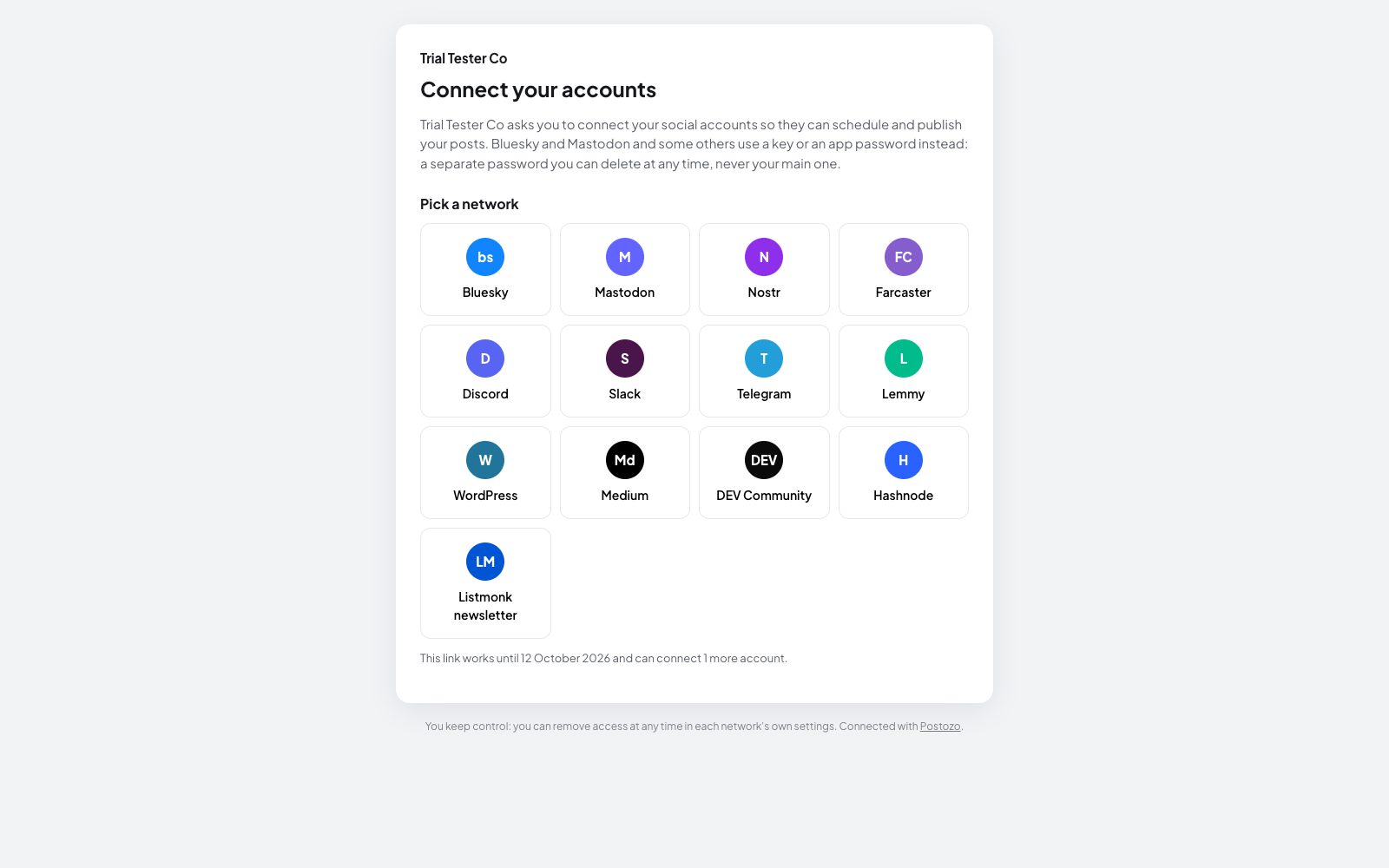
The link opens a simple page with your agency name (and logo with white label), the networks you allowed, and a line for each one saying what will happen. For networks that sign in through their own window, like Facebook, Instagram, LinkedIn, Google and YouTube, the client is sent there, signs in and comes back to pick the Pages, accounts or locations to add. For networks that connect with a username and an app password, like Bluesky and Mastodon, the client fills in a short form on the same page. The page has no scripts and only says what is true for the networks on that link.
Built so a link cannot be misused
A link only works for the time and the number of accounts you set, and only for the networks you allowed. The sign-in must be finished in the same browser that started it, and the link must still be valid when the network sends the client back. If anything is wrong, the client sees the reason on the link page. You can switch a link off at any time, and a link that is used up or expired says it does not work any more.
After the accounts arrive
Each channel is added under the customer you picked, with the same rules as a channel you connected yourself: posting times, approval for that customer, and the customer filter in the calendar. Channels count towards your plan's channel limit, so set the number of accounts on the link with your plan in mind.
Limits and rules
| Works for | 1 to 30 days |
| Accounts per link | 1 to 25 |
| Networks | All open networks, or the ones you pick |
| Who can make links | Owners and admins |
| Client needs | Their own login on the network; no Postozo account |
A message you can send
"Hi Priya, to let us post for you, please connect your accounts here: [link]. Pick Facebook, sign in as usual and tick your page, then do the same for Instagram and Google. It takes about 3 minutes, we never see your password, and you can remove our access at any time in each app's settings. The link works until Friday." Short, clear about safety, and with a deadline.
What the client does, by network
| Network | What the client does |
|---|---|
| Facebook and Instagram | Signs in to Facebook and picks the Pages and Instagram accounts |
| Signs in and picks the company Pages they admin | |
| Google Business Profile | Signs in to Google and picks the locations |
| YouTube | Signs in to Google and picks the channel |
| Bluesky and Mastodon | Fills in their handle or server and an app password on the link page |
Tips to get more from it
- Make 1 link per client and per onboarding, with the number of accounts you expect, so a forwarded link cannot add more.
- Limit the networks to the ones in your contract, so the client is not confused by a long list.
- Switch the link off when onboarding is done instead of waiting for it to expire.
Words on this page, explained
| Connect link | A link that lets someone outside your workspace connect their accounts to it. |
| App password | A separate password some networks give for apps, so your main password stays private. |
Mistakes to avoid
- Making 1 link for all clients. Make a link per customer, so every channel lands under the right name.
- Setting a high account limit and forgetting the link. Switch it off when onboarding is done.
- Sending the link to someone who is not an admin of the Page or location. Only an admin can grant access.
Who it is for
- Agencies onboard clients in 1 message instead of a call about passwords. See Agencies.
- In-house teams get access to regional pages owned by other offices. See Marketing teams.
- Franchise owners connect their local page to head office without handing over logins. See Small business.
How other tools handle client connect link
Of the 12 social media tools we compare, 3 list client connect link on their own pricing, feature or help pages:
- Sendible: Client Connect widget.
- Vista Social: External profile connection link.
- Agorapulse: Profile Connector, Advanced and up.
Not confirmed on their own pages: Postiz, Buffer, Hootsuite, Later, Sprout Social, Metricool, SocialPilot, Publer and Planable.
Plans and limits
Connect links are in every plan. Channels a client connects count towards your plan's channel limit. See Pricing for every limit.
| Limit | Standard | Team | Pro | Ultimate |
|---|---|---|---|---|
| Client connect links | Yes | Yes | Yes | Yes |
| Accounts per link | 1 to 25 | 1 to 25 | 1 to 25 | 1 to 25 |
| Channels | 5 | 10 | 30 | 100 |
Works with these channels
Client connect link works on every connected channel. These are the ones people use it with most:
See all channels, or compare Postozo with other tools on the compare page.
Questions
Does the client need a Postozo account?
No. They open the link, pick a network and sign in to their own account on that network.
Can the client see my other clients?
No. The link page only connects accounts. It shows nothing from your workspace.
What happens when the link expires?
It stops working and says so. Channels already connected stay connected.
Which networks can a link offer?
Every network that is open on Postozo. You can limit a link to a few, for example only Facebook and Instagram.
How do agencies get access to client social media accounts?
The safe way is to let the client sign in themselves. A Postozo connect link does that: the client signs in on the network, and the agency gets access without the password.
Is this safer than sharing passwords?
Yes. The password never leaves the client, 2 step sign-in keeps working, and the client can remove the access from the network's settings at any time.
Related features
Client approval
Turn on approval for a customer and every post for them waits for a yes. Clients approve, ask for changes or comment from a simple review link.
Read moreTeam and roles
Invite your team and clients to 1 workspace. Each role sees and does only what it should.
Read moreCalendar
See every scheduled, published and draft post in 1 place. Switch between day, week, month and list, and drag a post to move it.
Read moreClient reports
Pick a customer and a period. Postozo puts their posts and each network's numbers on 1 page you can share as a link, save as a PDF, or have emailed every week or month.
Read moreStart planning your posts today
Create your account and publish your first post in 5 minutes.
Create your free account