 Postozo
A social media calendar for every channel and client
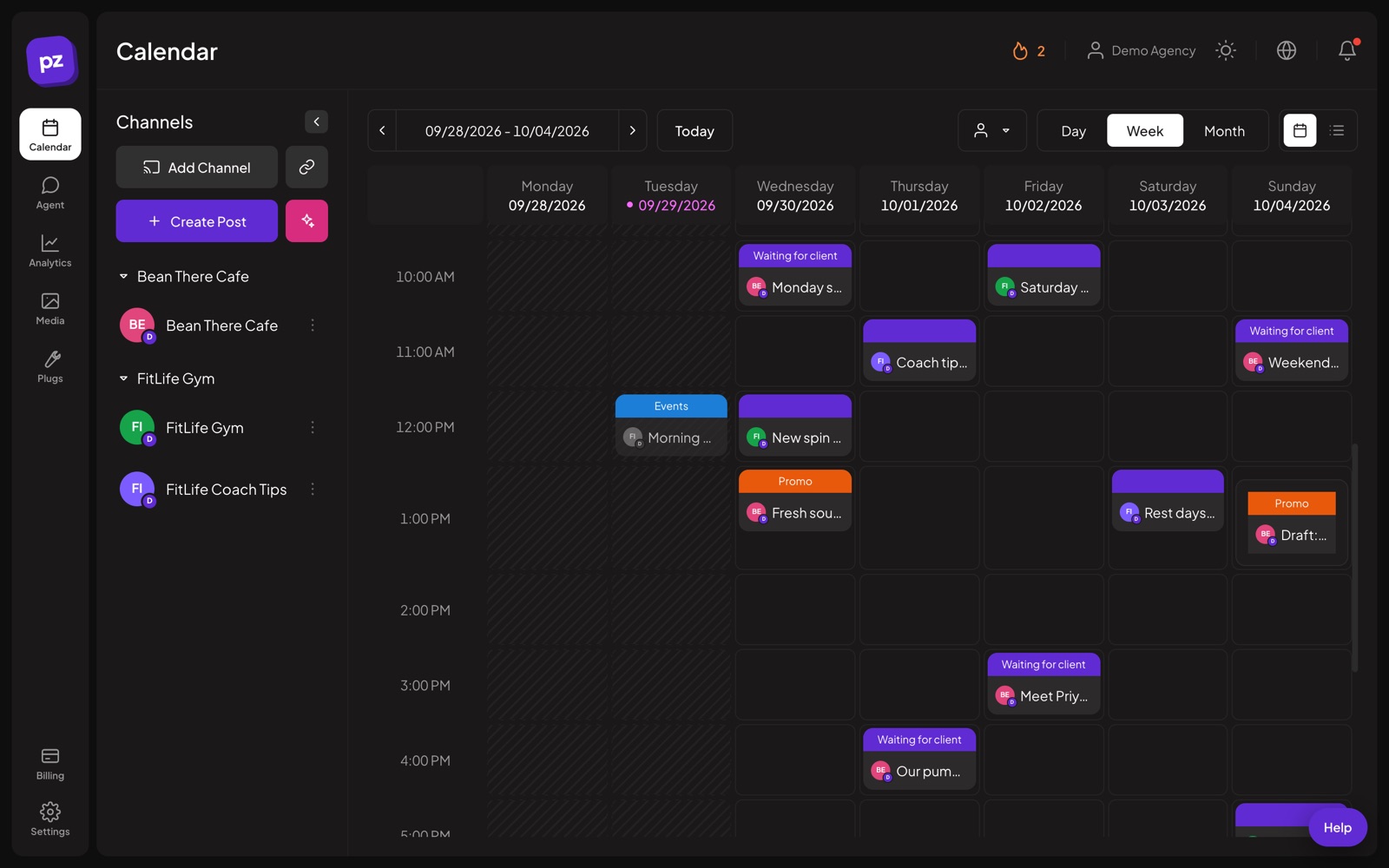
See every scheduled, published and draft post in 1 place. Switch between day, week, month and list, and drag a post to move it.
What you can do
Day, week, month and list
Pick the view that fits how you plan. The list view shows posts page by page with filters for scheduled, drafts and published.
Drag to reschedule
Drag a post to another day or time. Postozo moves the publish time for every channel in it.
Filter by customer
Working for many clients? Show 1 customer at a time so the calendar stays clear.
Posting times per channel
Set the best times for each channel. New posts can use the next free time with 1 click.
Status at a glance
Posts show if they are scheduled, waiting for a client, published or need your help.
Repeat posts
Post the same thing every day, 2 days, 3 days, week, 2 weeks or month. Repeats show on the calendar ahead of time.
Set up your social media content calendar in 4 steps
Connect your channels
Add each account once. It shows in the channel list next to the calendar, grouped by customer if you use customers.
Set posting times
Give each channel the times you like to post, for example 09:00 and 18:00. These become the free slots the post editor offers.
Plan in the view you like
Use week view to fill gaps, month view to see the big picture, and list view to check what is still a draft.
Drag, drop and check
Drag a post to a new slot and the new time applies to every channel in it. Click a post to open it in the editor.
Example: a bakery plans its week
A bakery posts to Facebook, Instagram and Google Business Profile. On Monday morning the owner opens week view and sees the empty slots at 09:00 each day. She fills them: a new bread on Tuesday, a weekend offer on Friday, and holiday opening hours on Sunday. The Friday offer is set to repeat every week, so it already shows on the calendar for the coming weeks. When a festival moves, she drags the Sunday post to Saturday and all 3 channels move with it.
Tips to get more from it
- Give each channel 1 or 2 posting times before you start. Filling free slots is faster than picking a time for every post.
- Use month view on the first working day of the month to spot empty weeks early.
- Use repeat posts only for evergreen content, like opening hours or a standing offer, and check them each quarter.
Who it is for
- Agencies filter the calendar by customer, so each client gets a clean week of their own. See Agencies.
- Small businesses plan a whole week in 1 sitting and stop posting in a rush. See Small business.
- Marketing teams see the same plan, so nobody posts over a launch. See Marketing teams.
Plans and limits
Every plan includes the full calendar with all 4 views, drag to move and repeat posts. Plans differ only in how many channels you connect. See Pricing for every limit.
| Limit | Standard | Team | Pro | Ultimate |
|---|---|---|---|---|
| Channels | 5 | 10 | 30 | 100 |
| Posts | Unlimited | Unlimited | Unlimited | Unlimited |
Works with these channels
Calendar works on every connected channel. These are the ones people use it with most:
See all channels, or compare Postozo with other tools on the compare page.
Questions
Can I see posts for only 1 client?
Yes. Use the customer menu at the top of the calendar to show 1 customer at a time.
What happens when I drag a post?
The post gets the new date and time for all its channels. If it needs approval, it keeps its approval state.
Which time zone does the calendar use?
Your own time zone, which you can change in Settings.
How often can a post repeat?
Every day, 2 days, 3 days, week, 2 weeks or month. Each repeat shows on the calendar ahead of time.
Can I find only my drafts?
Yes. The list view has a filter for drafts, as well as for scheduled and published posts.
What is a social media content calendar?
A plan of what you will post, where and when. In Postozo it is a live calendar: each post sits on its date and time, with its channels, status and approval.
What should a social media calendar include?
The date and time, the channel, the text, the picture or video, the status and who approved it. Want a spreadsheet version? Download the free social media calendar template.
Related features
Post editor
The post editor sends 1 text to all the channels you pick. Change the text, pictures or settings for a single channel without touching the others.
Read moreClient approval
Turn on approval for a customer and every post for them waits for a yes. Clients approve, ask for changes or comment from a simple review link.
Read moreAnalytics
Follow results for each channel and each post, count clicks on your links, and find the best time to post.
Read moreReliability
Postozo was built to fix the 2 things people hate most in schedulers: posts that fail without a reason, and posts that go out twice.
Read moreStart planning your posts today
Create your account and publish your first post in 5 minutes.
Create your free account