 Postozo
Upload once, use your photos and videos in any post
Keep every picture and video in 1 library. Add alt text, find files fast, make pictures with AI, and let Postozo check each network's size rules before a post goes out.
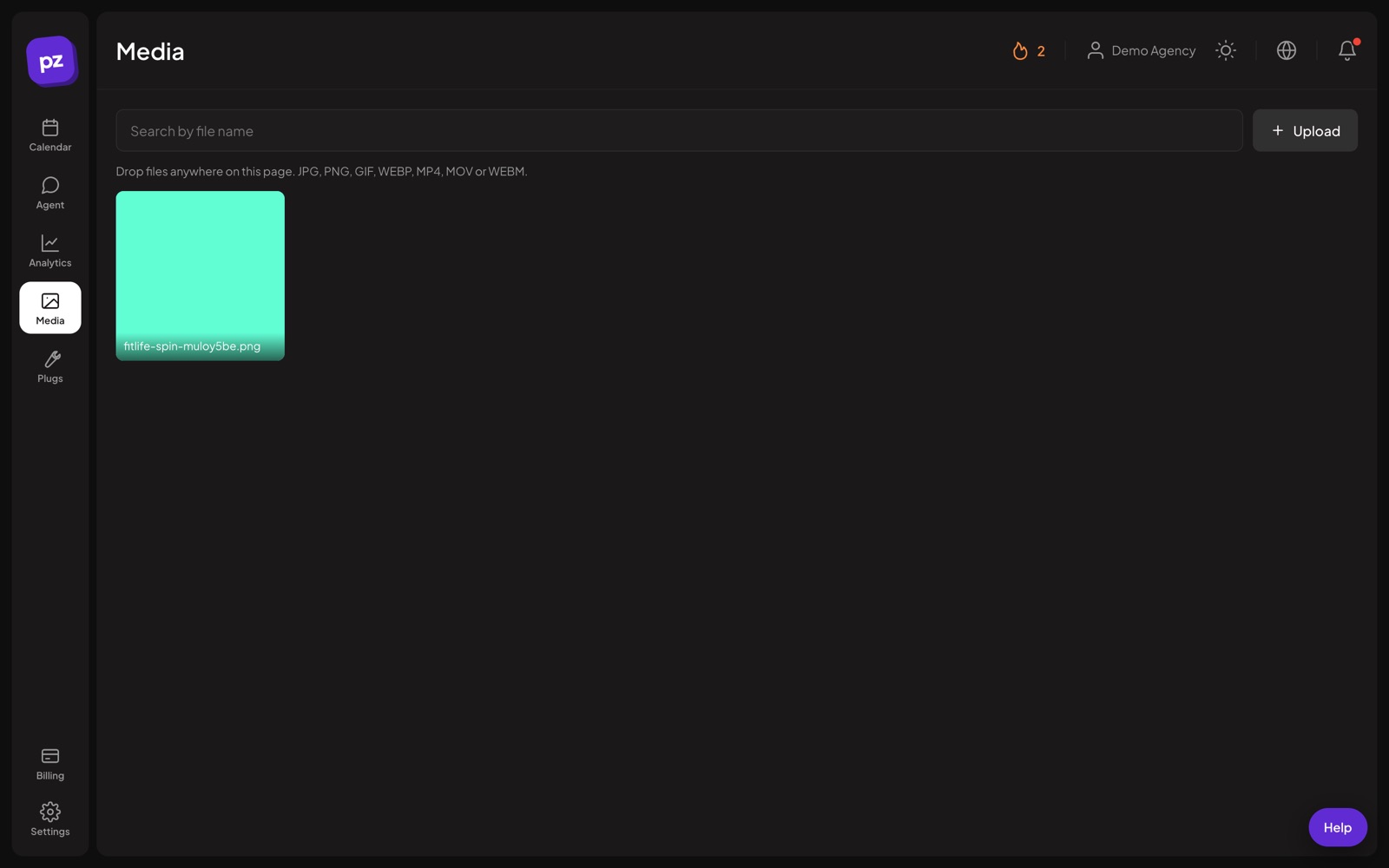
What you can do
Drop, paste or upload
Drop files anywhere on the page, paste them, or press Upload. Add many at once.
Alt text
Describe each picture for people who cannot see it, by hand or with AI.
Find files fast
Search by file name or alt text, and sort by newest, oldest, largest or name.
See where it is used
Each file shows how many posts use it. Deleting a file never breaks a post that has it.
Import from a link
Paste a link to a picture or video and Postozo fetches it into the library.
AI pictures
Make a picture from a prompt with the monthly AI image allowance of your plan.
Manage social media photos and videos in 4 steps
Add your files
Open Media and drop in photos and videos: JPG, PNG, GIF and WEBP pictures, and MP4, MOV and WEBM videos.
Describe them
Add alt text to each picture, or press Write alt text with AI and check the result.
Use them in posts
In the post editor, press Insert Media and pick from the library, or upload new files there.
Let Postozo check the rules
When you schedule, each network's size and format rules are checked, and you are told what to change.
Example: a product shoot for 5 networks
A shop gets 40 photos and 3 short videos from a product shoot. The social media manager drops them all into the media library at once and adds alt text to the 10 she will use first, using AI for the first draft of each. Over the next month she builds posts from the library for Instagram, Facebook, Pinterest, LinkedIn and Google Business Profile. When she picks a tall photo for an Instagram feed post, the editor warns that Instagram needs a shape between 4:5 and 1.91:1, so she picks a square one instead.
File rules on app.postozo.com
The library takes JPG, PNG, GIF and WEBP pictures up to 10 MB each, and MP4, MOV and WEBM videos up to 200 MB each. On top of that, every network has its own rules for shape, size and length, and those are what usually decide whether a post can go out. Postozo reads those rules from the same code that publishes your posts and checks them when you schedule, so a post with a picture that Instagram would refuse is caught in the editor, not at 09:00 on the day.
Canva, Google Drive and Dropbox
Buttons for Canva, Google Drive and Dropbox are built into the post editor, the media library and the Media screen. With Canva, you make a design in 1 of 8 social sizes or pick 1 of your designs, edit it in Canva, and add every page of it to the post. Google Drive opens Google's own file picker, and Dropbox its Chooser. They stay hidden until each connection is switched on, so you never see a button that does not work. Until then, download the file and drop it into the library, or paste its link into Import from URL.
Import from a link, safely
Import from URL fetches a picture or video from a web address into your library. Postozo fetches it in a way that cannot reach private networks, and checks the file type and size the same way as an upload. The browser extension uses the same path when you share a picture from a web page.
Limits and rules
| Pictures | JPG, PNG, GIF and WEBP, up to 10 MB each |
| Videos | MP4, MOV and WEBM, up to 200 MB each |
| Sorting | Newest, oldest, largest, name A to Z |
| Search | File name and alt text |
| Canva, Google Drive, Dropbox | Built, not switched on yet |
Picture sizes that work
| Use | Size in pixels |
|---|---|
| Instagram post, square | 1080 x 1080 |
| Instagram post, portrait | 1080 x 1350 |
| Story or Reel | 1080 x 1920 |
| Facebook post | 1200 x 630 |
| LinkedIn post | 1200 x 627 |
| X post | 1600 x 900 |
| YouTube thumbnail | 1280 x 720 |
| Pinterest pin | 1000 x 1500 |
These are the same 8 sizes the Canva button offers. Each network's full rules are on its channel page.
Tips to get more from it
- Add alt text when you upload, not when you post. It is faster in 1 batch and every later post benefits.
- Name files after what they show before you upload, like summer-menu-square.jpg. Search finds them by name.
- Keep a square and a tall version of key pictures. Most networks accept 1 of the 2 shapes.
Words on this page, explained
| Alt text | A description of a picture for people using screen readers. |
| Aspect ratio | The shape of a picture, width to height, like 4:5 or 16:9. |
Mistakes to avoid
- Uploading screenshots of text. They are hard to read on phones and impossible for screen readers; put the words in the post and the alt text.
- Using the same tall picture everywhere. Check each network's shape rules, or keep a square version.
- Deleting files to clean up and expecting old posts to change. Posts keep their own copy, so delete only what you will never need again.
Who it is for
- Marketing teams keep approved brand photos in 1 shared place. See Marketing teams.
- Agencies keep each workspace's files apart, so clients never mix. See Agencies.
- Creators upload a shoot once and use it for weeks. See Creators.
How other tools handle canva integration
Of the 12 social media tools we compare, 11 list canva integration on their own pricing, feature or help pages:
- Buffer: Every plan, plus Google Drive and Dropbox.
- Hootsuite: Built into the Composer. Dropbox can be connected too.
- Later: Every plan, including Free, through Canva's app directory.
- Sprout Social: Canva designs arrive in Sprout as draft posts. Google Drive and Dropbox can be connected too.
- Metricool: Paid plans, plus Google Drive.
- SocialPilot: Every plan, plus Google Drive, Dropbox and Box.
- Publer: Every plan, including Free.
- Sendible: Every plan, plus Google Drive and Dropbox.
- Vista Social: Every plan, plus Google Drive, OneDrive and Dropbox.
- Planable: Listed in its integrations.
- Agorapulse: Professional and up, plus Google Drive on every plan.
Not confirmed on their own pages: Postiz.
Plans and limits
The media library is in every plan. AI pictures use a monthly allowance that grows with the plan. See Pricing for every limit.
| Limit | Standard | Team | Pro | Ultimate |
|---|---|---|---|---|
| Media library | Yes | Yes | Yes | Yes |
| AI pictures a month | 20 | 100 | 300 | 500 |
| Alt text with AI | Yes | Yes | Yes | Yes |
Works with these channels
Media library works on every connected channel. These are the ones people use it with most:
See all channels, or compare Postozo with other tools on the compare page.
Questions
Which file types can I upload?
JPG, PNG, GIF and WEBP pictures, and MP4, MOV and WEBM videos.
How large can files be?
On app.postozo.com, pictures up to 10 MB and videos up to 200 MB each. Each network has its own limits too, and Postozo checks them when you schedule.
What happens to a post if I delete a file?
Nothing. Posts that already use the file keep their own copy.
Can I add files from Canva, Google Drive or Dropbox?
Not yet. The buttons are built and will show in the editor and the library once each is switched on. Until then, download the file and drop it in, or use Import from URL.
What is alt text and why add it?
Alt text describes a picture for people who use screen readers. Some networks show it, and it helps everyone understand the post.
Does Postozo resize pictures for each network?
It checks each network's size and shape rules and tells you what to change before the post is saved, so a post does not fail at publishing time.
Is there a Canva integration?
The Canva button is built: make a design in 8 social sizes or pick 1 of yours, then add it to a post in 1 click. It is not switched on yet; this page will say when it is.
Related features
Post editor
The post editor sends 1 text to all the channels you pick. Change the text, pictures or settings for a single channel without touching the others.
Read moreAI assistant
Write a post from a short idea, improve it, translate it or fit it to each network. You see every suggestion before it changes your post.
Read moreBulk upload
Save a spreadsheet as a CSV file and upload it. Postozo checks every line against your channels and each network's rules before anything is saved.
Read moreBrowser extension
Found something worth sharing? Click the Postozo button or press Alt+Shift+P. The post editor opens with the link, the text you picked and the picture, ready to schedule.
Read moreStart planning your posts today
Create your account and publish your first post in 5 minutes.
Create your free account