
How to connect WhatsApp to Postozo
Paste a few details from WhatsApp and start scheduling. This guide shows where to find each detail, each screen in Postozo, and how to fix common errors.
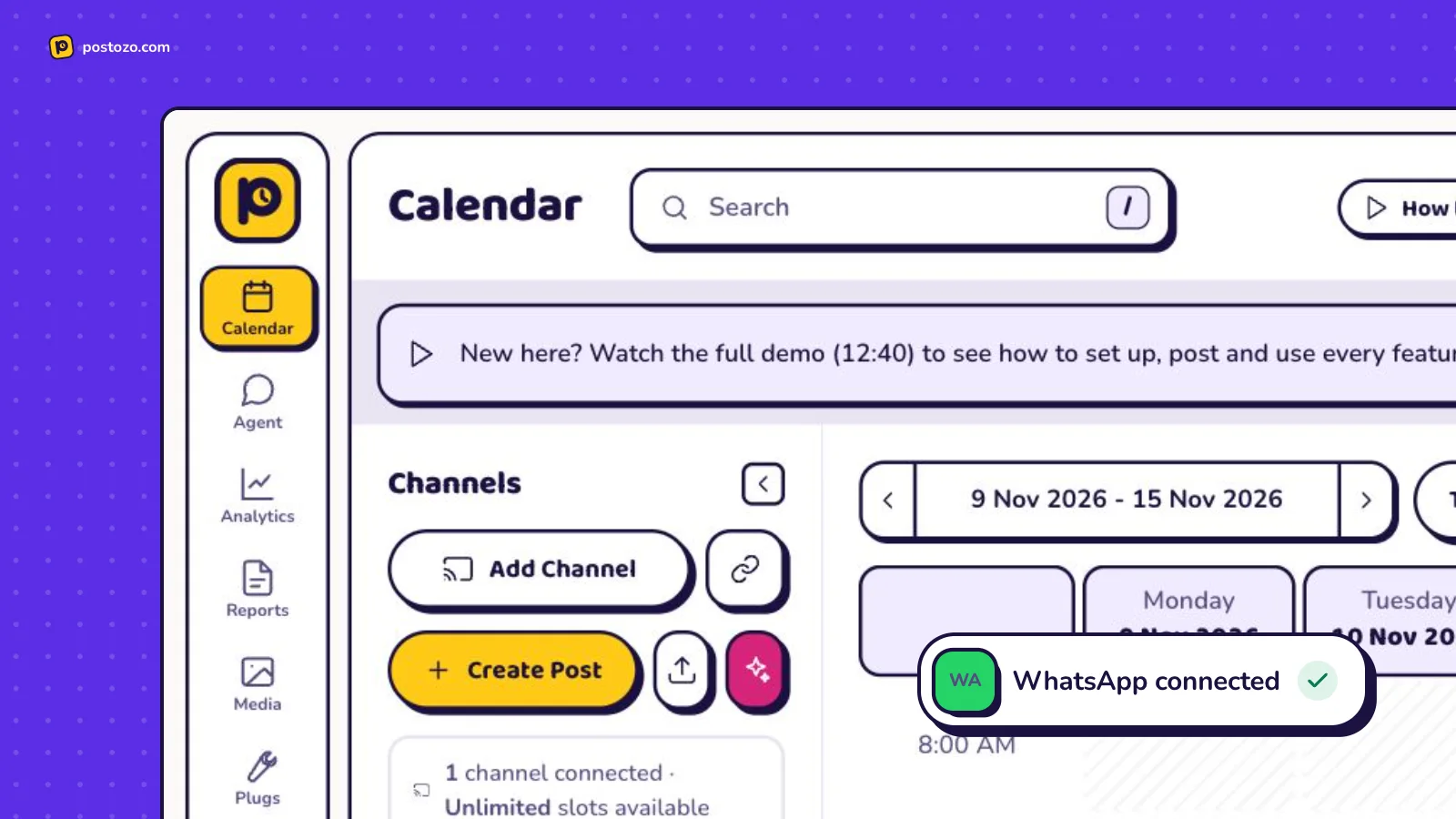
What you need before you start
- A WhatsApp Business number on the Meta Cloud API. Setting one up at developers.facebook.com is free.
- An approved Marketing template whose body is exactly one {{1}} variable.
- Opt-in from every person on your list.
WhatsApp connects with details you copy from WhatsApp (a key, token or app password). Postozo checks them with WhatsApp before saving and stores them encrypted.
Connect WhatsApp step by step
Step 1. Open Add Channel
Sign in to Postozo. On the Calendar, press Add Channel at the top of the channel list. A window opens with a tile for every network. Find the WhatsApp Business tile and press it. Each tile also has a How to connect link that opens this guide.
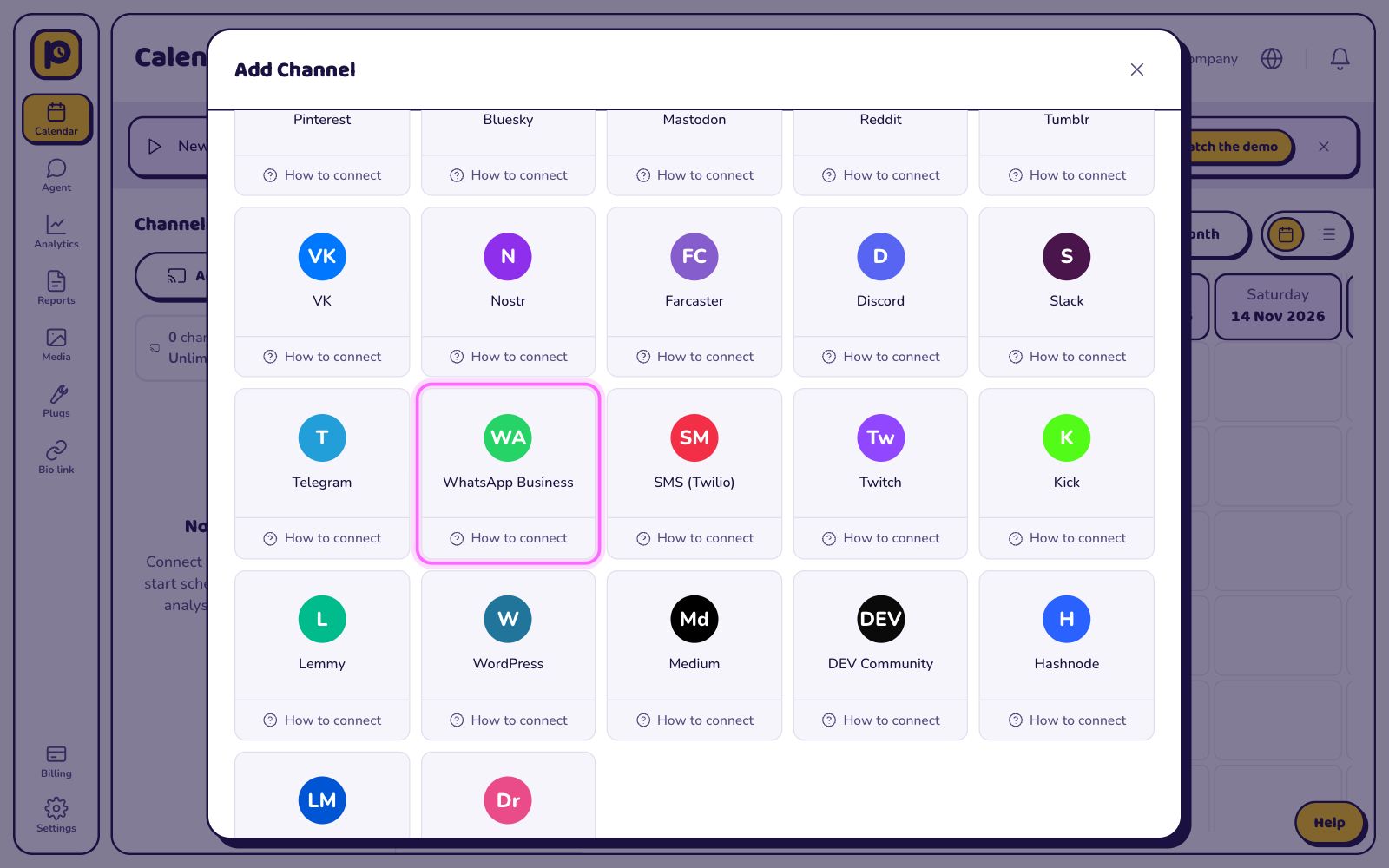
If the tile says Coming soon on this server, the server you use has not added its WhatsApp app keys yet. Ask the person who runs your Postozo server. On postozo.com this is done for you.
Step 2. Fill in your WhatsApp details
A form opens. It asks for 5 details: Access token, Phone number ID, Approved template name, Template language code (optional), Recipients. Under each field, press Where do I find this? to see the exact steps. We copy those steps below.
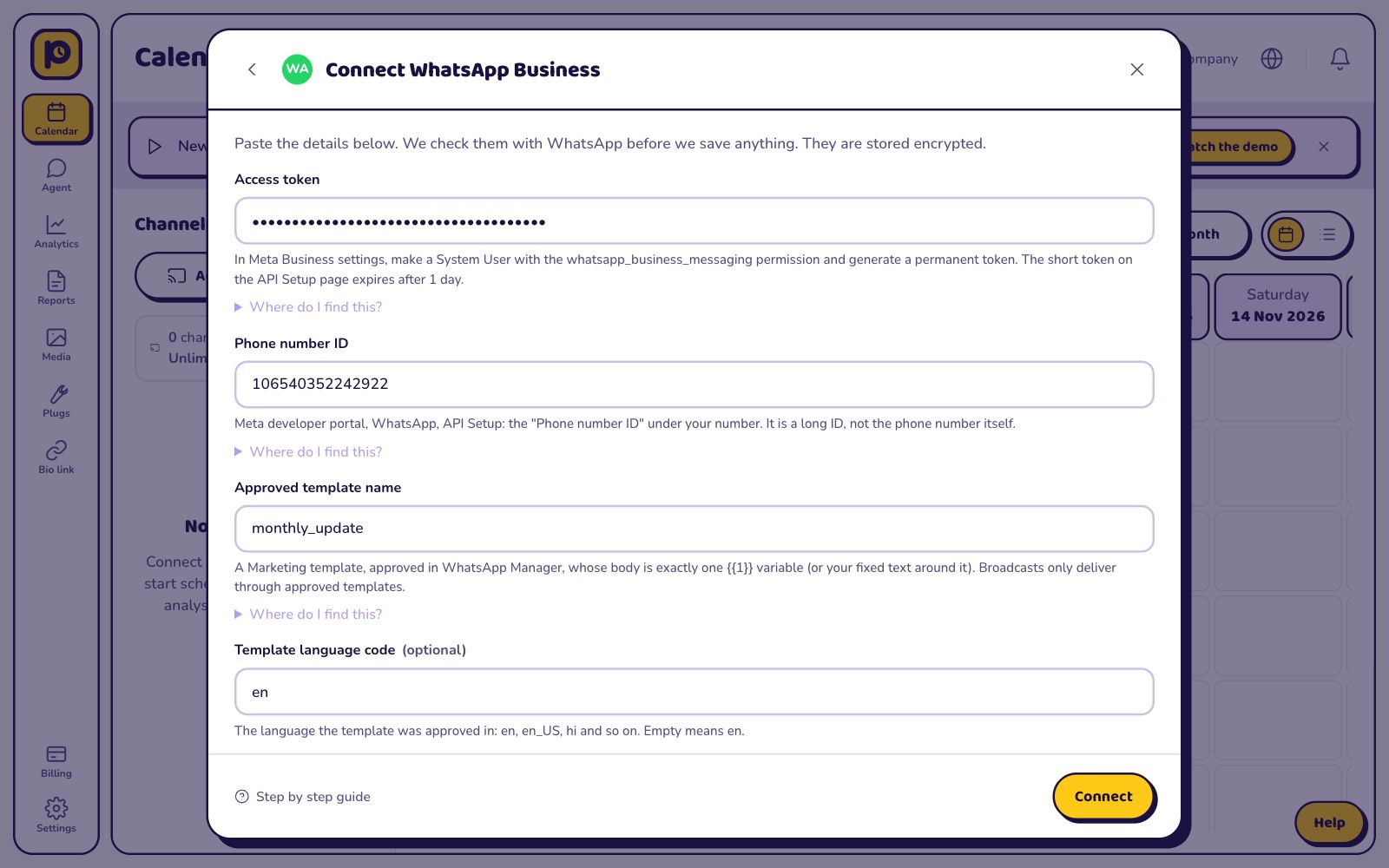
Access token
- Open business.facebook.com, then Business settings, then Users, then System users.
- Make a system user with the Admin role and press Generate token.
- Pick your app, tick whatsapp_business_messaging and whatsapp_business_management, and copy the token.
- Use this permanent token. The token on the API Setup page stops working after 1 day.
Phone number ID
- Open developers.facebook.com, your app, then WhatsApp, then API Setup.
- Under From, your number shows a Phone number ID.
- Copy that long ID, not the phone number itself.
Approved template name
- Open WhatsApp Manager, then Message templates.
- Make a Marketing template whose body is exactly one {{1}} variable, with your fixed text around it if you like, and wait until it says Approved.
- Copy its exact name: small letters, numbers and underscores.
Template language code (optional)
- Open the template in WhatsApp Manager.
- Its language shows next to the name, for example English (US).
- Type the short code for it: en, en_US, hi and so on. Empty means en.
Recipients
- Type the WhatsApp numbers this channel messages, 1 per line.
- Every number needs its country code, like +919876543210.
- Only add people who agreed to hear from your business on WhatsApp.
Step 3. Press Connect
Postozo checks the details with WhatsApp before it saves anything. If something is wrong, the form stays open and shows what to fix. Nothing is saved until the check passes. The details are stored encrypted.
Step 4. Check the new channel
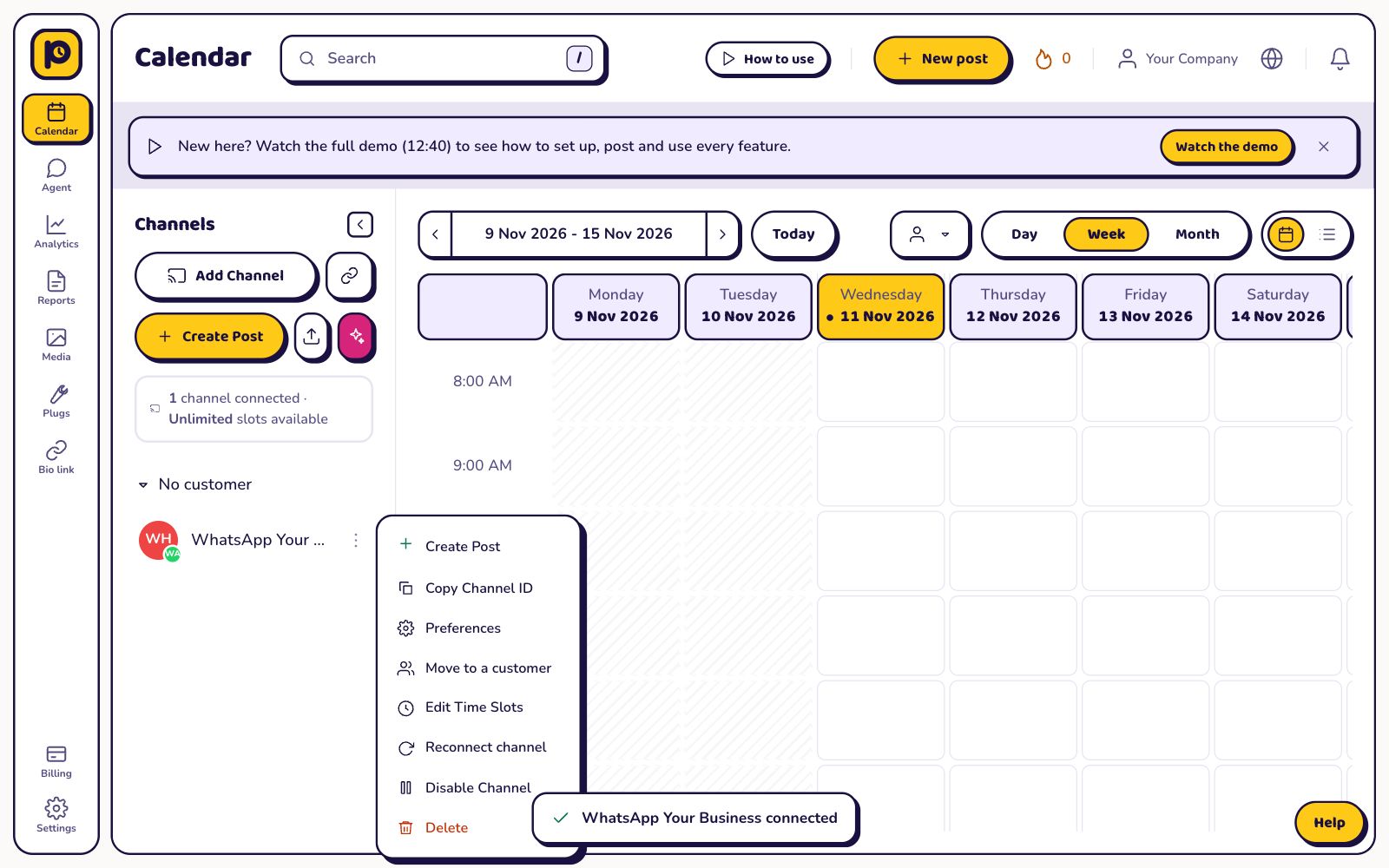
Back on the Calendar, the new channel shows in the channel list on the left, with a small WhatsApp badge on its picture. A message at the bottom says it is connected. You can now pick it in the post editor.
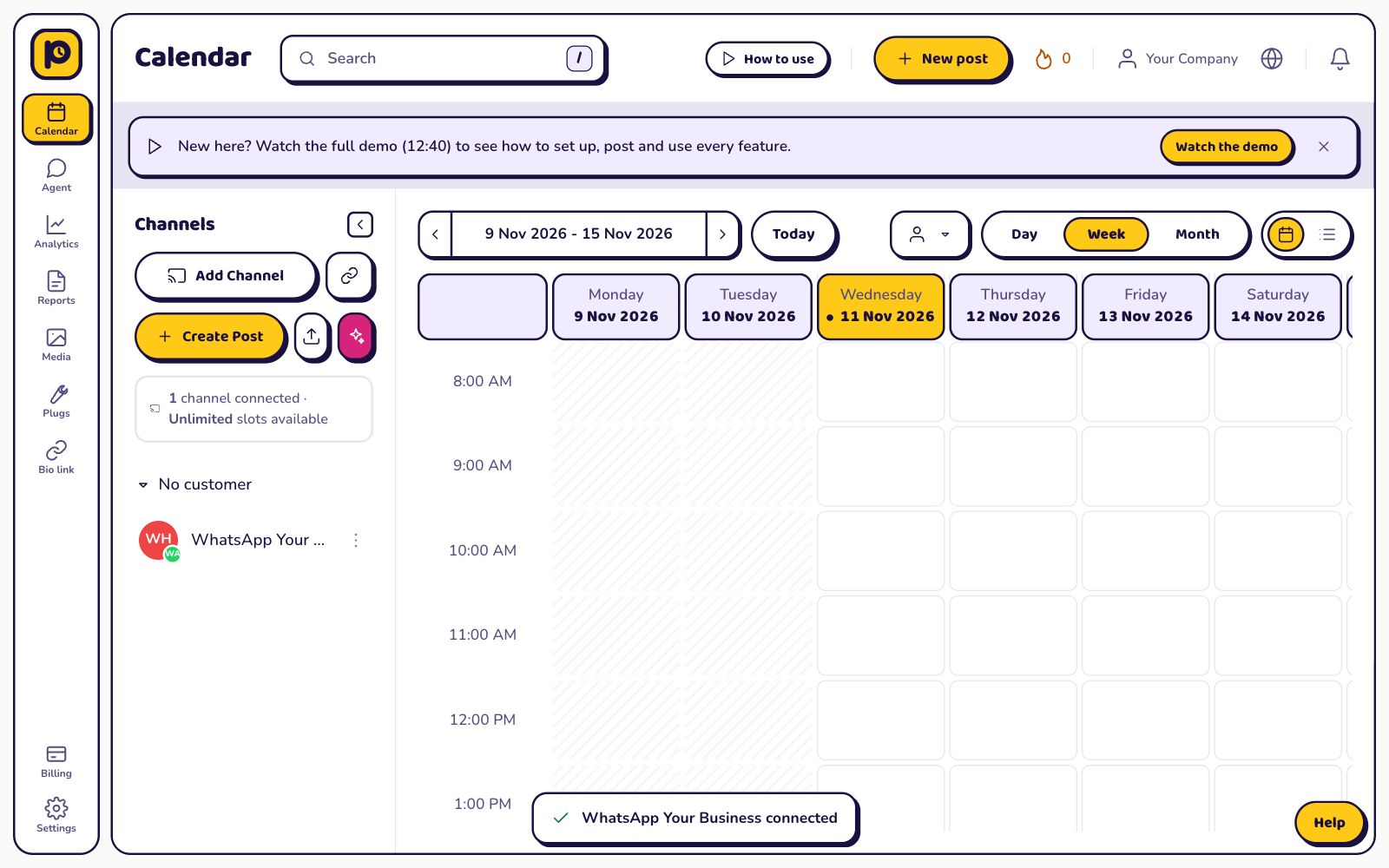
Step 5. Set your preferences
Press the 3 dots next to the channel to open its menu. From here you can set Preferences (default settings for every new post on this channel, like Send only to (this post)), edit time slots, move the channel to a customer, reconnect, turn it off or delete it.
Common errors and how to fix them
| What you see | What to do |
|---|---|
| "WhatsApp has no approved template with that name" | In WhatsApp Manager, check the exact template name and the language code it was approved in, then reconnect the channel. |
| "The template takes a different number of variables" | Use a template whose body has exactly one {{1}} variable. |
| "The WhatsApp access token expired" | Use a permanent system user token from Business settings, not the 1 day token from the API Setup page. |
| A red message under a field | The value does not have the right format. The message says what it should look like. |
| "We could not reach WhatsApp right now" | WhatsApp did not answer. Wait 1 minute and press Connect again. |
| "Your plan allows N channels" | You reached the channel limit of your plan. Remove a channel you do not use, or upgrade in Billing. |
How to reconnect
If the WhatsApp details stop working (for example you deleted the key or changed the password), Postozo marks the channel with a warning and pauses its posts. Press the 3 dots next to the channel, then Reconnect channel. The same form opens. Paste the new details and press Reconnect. The channel keeps its posts, time slots and preferences.
How to disconnect WhatsApp
Press the 3 dots next to the channel, then Delete. Postozo removes the channel and deletes its stored details right away. Upcoming and draft posts for that channel are removed too. Posts that are already live stay on WhatsApp. You need the admin or owner role in your workspace to delete a channel.
To cut access on the network side as well, delete the key, token or app password you created there.
Want to pause instead? Choose Disable Channel in the same menu. Its posts wait until you turn it back on.
What you can post on WhatsApp
Sends the post text through your approved WhatsApp template to every number on the channel list, or only to "Send only to" in Settings. Up to 1024 characters, shown as 1 paragraph (line breaks become spaces). No photos yet, no markdown. Recipients must have opted in.
Read more on the WhatsApp channel page.
What you can do once WhatsApp is connected
Read from the same code that publishes to WhatsApp, so it always matches the app.
| Text per post | Up to 1,024 characters |
| Pictures or videos per post | Up to 10 |
| A post must have | Text, media or both |
| Settings in the post editor | Send only to (this post) |
| First comment or thread | No |
| Analytics | No, WhatsApp does not share statistics with apps |
| Auto actions | No |
| Bulk upload | Yes, name the channel in the channels column |
| Client reports | Yes, with posts but no network numbers |
Connect a client's WhatsApp without their password
Working for a client? Send them a client connect link instead of asking for their details. On the link page they pick WhatsApp and fill in Access token, Phone number ID, Approved template name, Template language code and Recipients themselves. Postozo checks the details with WhatsApp, and the channel lands under their customer in your workspace. You never see what they typed.
More connection guides
What does a message cost?
Meta charges your WhatsApp Business account per conversation and per country.
Why does it need a template?
WhatsApp only delivers broadcasts through templates it approved. Your post text becomes the {{1}} variable, shown as 1 paragraph.
Can I send a photo?
Not yet. WhatsApp posts are text only for now.
How do I message just 1 person?
Open the post settings and fill in Send only to. The channel list is not used for that post.
Does connecting WhatsApp cost extra?
No. There is no extra charge per network. Each connected account counts as 1 channel toward the channel limit of your plan.
What if the WhatsApp tile says Coming soon on this server?
The server you use has no WhatsApp app keys yet. The server admin adds them in Admin, Networks. Press Notify me on the tile and you get 1 email when it opens.
Can a client connect their own WhatsApp account?
Yes. Send them a client connect link. They connect WhatsApp themselves and the channel lands under their customer.
Connect WhatsApp now
Create your Postozo account and add your first WhatsApp channel in a few minutes.
7 day free trial. No card needed.