 Postozo
How to connect X to Postozo
Sign in with X and start scheduling. This guide shows each screen in Postozo, what X asks for, and how to fix common errors.
What you need before you start
- An X account. Any account type works.
- Access to the email or phone on the account, in case X asks you to confirm the sign-in.
X uses a sign-in button (called OAuth). You never share your X password with Postozo.
Connect X step by step
Step 1. Open Add Channel
Sign in to Postozo. On the Calendar, press Add Channel at the top of the channel list. A window opens with a tile for every network. Find the X tile and press it. Each tile also has a How to connect link that opens this guide.
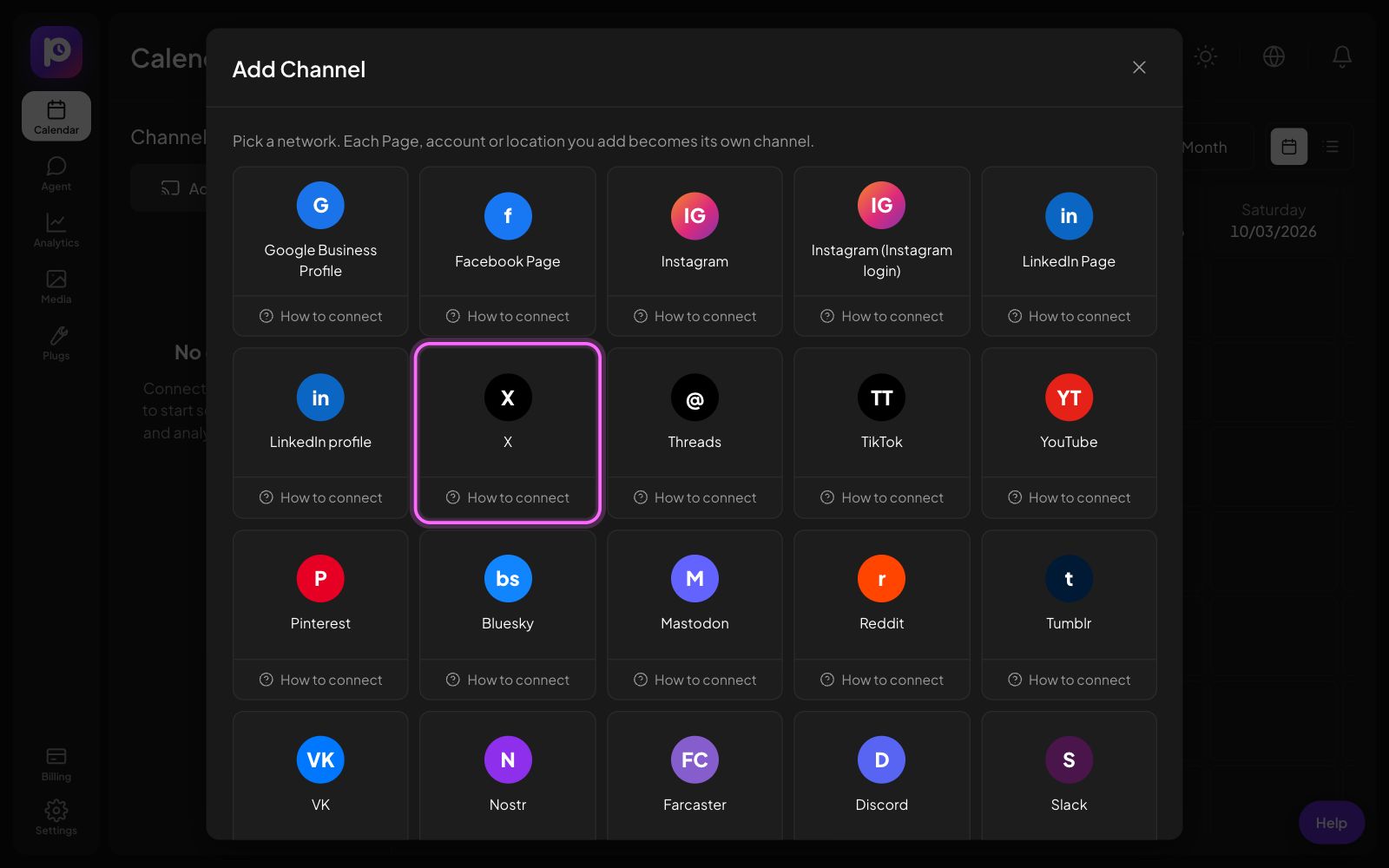
If the tile says Coming soon on this server, the server you use has not added its X app keys yet. Ask the person who runs your Postozo server. On postozo.com this is done for you.
Step 2. Sign in on X
Postozo sends you to X to sign in. This screen belongs to X, so we cannot show it here. What you will see:
- X opens and asks you to sign in if you are not signed in yet.
- X shows what Postozo will be allowed to do, for example post and repost for you. Press Authorize app.
Postozo checks that these permissions were given, because posting fails without them:
- Post and repost for you
- Stay connected
You never type your X password into Postozo. X sends you back with a sign-in that Postozo stores encrypted.
X connects 1 account per sign-in, so there is no list to pick from. You go straight back to the Calendar.
Step 3. Check the new channel
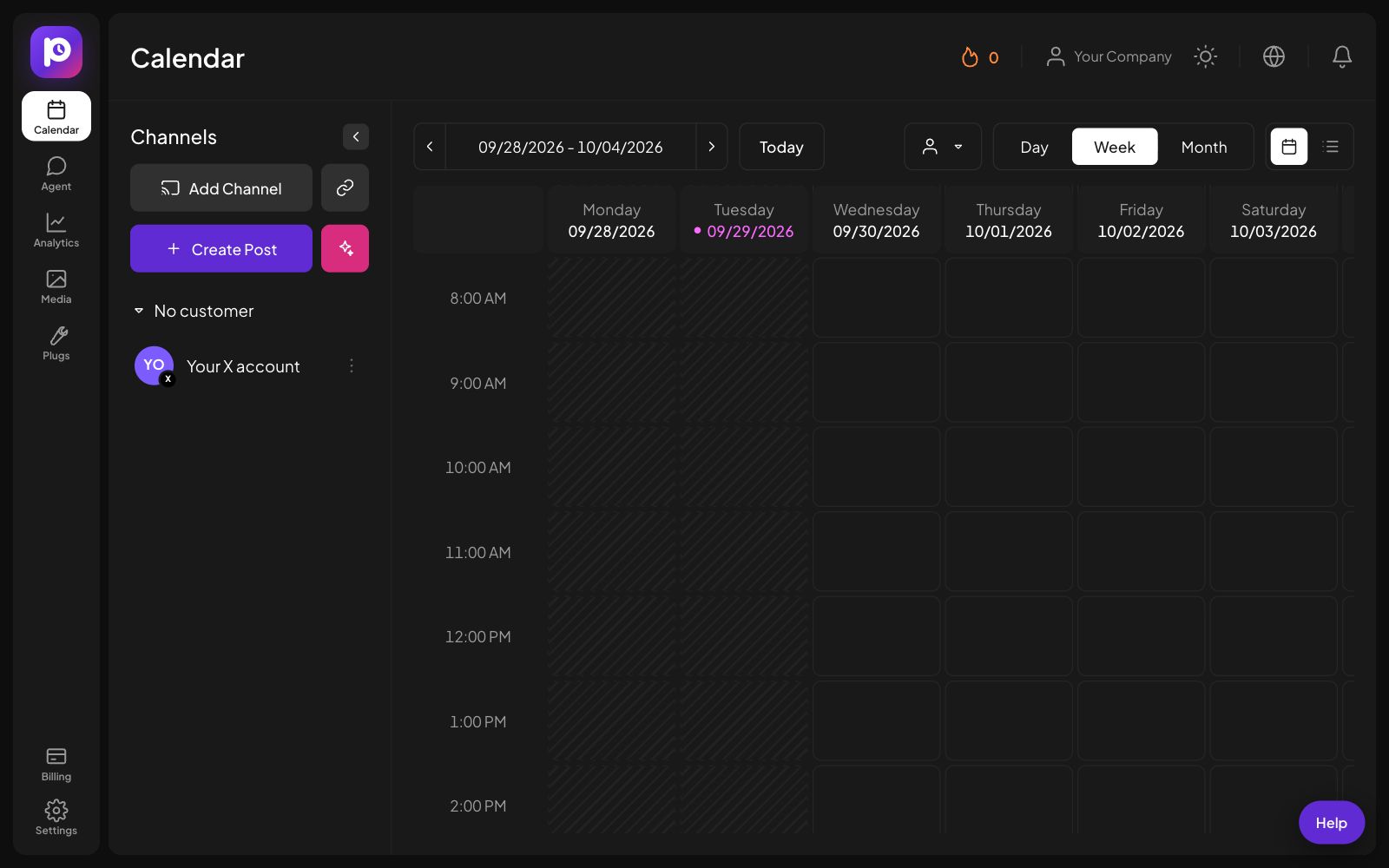
Back on the Calendar, the new channel shows in the channel list on the left, with a small X badge on its picture. A message at the bottom says it is connected. You can now pick it in the post editor.
Step 4. Set your preferences
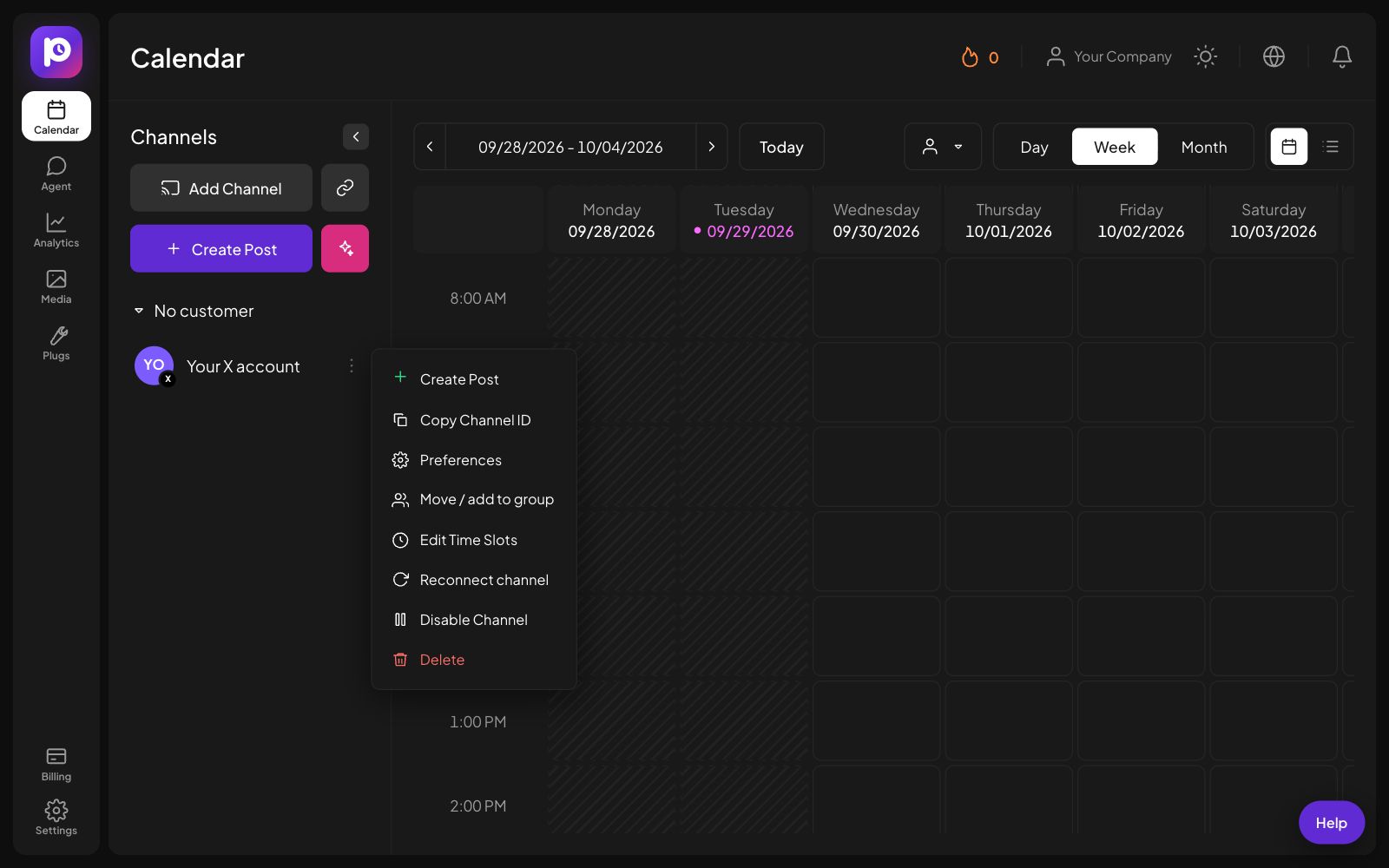
Press the 3 dots next to the channel to open its menu. From here you can set Preferences (default settings for every new post on this channel, like Who can reply), edit time slots, move the channel to a customer, reconnect, turn it off or delete it.
Common errors and how to fix them
| What you see | What to do |
|---|---|
| "X did not give Postozo every permission it needs" | Press Try again and authorize the app. Do not change the permissions on the X screen. |
| X shows "Something went wrong" | This is often a short X outage or a sign-in check. Wait a minute, sign in to x.com in the same browser, then try again. |
| "You cancelled the sign-in, or did not allow access" | You pressed Cancel or closed the X screen. Press Try again and choose Allow. |
| "X did not give Postozo every permission it needs" | A permission was turned off on the X screen. The message names it. Press Try again and leave everything turned on. |
| "This sign-in link has expired" | Sign-in links last 1 hour. Start again from Add Channel. |
| "Your plan allows N channels" | You reached the channel limit of your plan. Remove a channel you do not use, or upgrade in Billing. |
How to reconnect
A sign-in can stop working, for example when you change your X password, remove the app on X, or lose access to a account. Postozo then marks the channel with a warning, pauses its posts, and tells you by notification and email.
- Press the 3 dots next to the channel.
- Press Reconnect channel.
- Sign in on X again with the same account.
- You are back on the Calendar and the warning is gone.
Reconnect keeps the channel, its posts, time slots and preferences. If you sign in with a different account, Postozo stops and tells you, so posts never go to the wrong account.
How to disconnect X
Press the 3 dots next to the channel, then Delete. Postozo removes the channel and deletes its stored sign-in right away. Upcoming and draft posts for that channel are removed too. Posts that are already live stay on X. You need the admin or owner role in your workspace to delete a channel.
To also remove Postozo from your X account, open the connected apps settings on X and remove it there. See X help: connected apps.
Want to pause instead? Choose Disable Channel in the same menu. Its posts wait until you turn it back on.
What you can post on X
Max 280 characters (links count as 23). Up to 4 images or 1 video. Follow-up comments become a thread.
Read more on the X channel page.
X help pages
More connection guides
Questions
Can I post threads?
Yes. Follow-up comments in the editor are posted as a thread under your post.
Can I connect more than 1 X account?
Yes. Sign out of X in your browser (or switch accounts on x.com), then add the next account.
Does connecting X cost extra?
No. There is no extra charge per network. Each connected account counts as 1 channel toward the channel limit of your plan.
What if the X tile says Coming soon on this server?
The server you use has no X app keys yet. The server admin adds them in Admin, Networks.
Connect X now
Create your Postozo account and add your first X channel in a few minutes.
Create your free account